
Guide
Wardogs: How to Play with Friends & Create a Squad
Discover how to play with friends and create a custom squad in Wardogs.

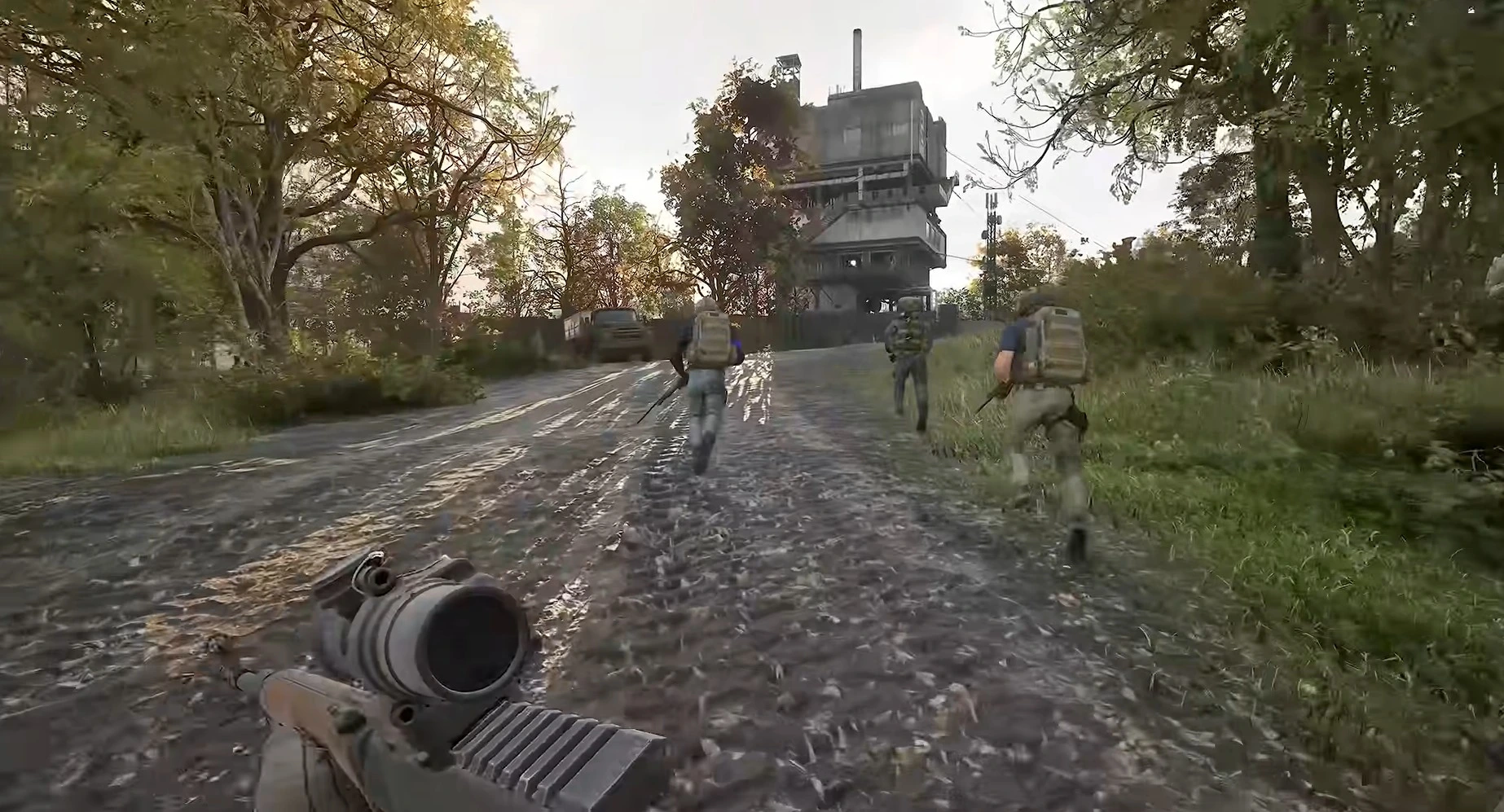
Heading into a massive All-Out Warfare battle with randoms in Wardogs can either be fun or underwhelming. There is no better squad than your friends in any online game, and if it is a military game, then it is essential to have friends alongside you to create various strategies effectively. Wardogs is a massive multiplayer game with 100 players in a single server and requires team communication for better control of the Control Zone. However, playing with friends in Wardogs is not as simple as in other military shooter games. In this guide, we will explain how to play with friends and create a squad in Wardogs.
How to Play with Friends & Create a Squad in Wardogs
If you have ever played a military shooter online game, you would see an invite a friend option on the main menu or somewhere in the main menu. Well, that is not the case in Wardogs. There is no direct option to invite online friends to your lobby. However, to play with your friends and have a separate squad so that you guys can talk directly in squad voice comms, you all have to join the same server and the same faction.
- Click on “Deploy” in the home screen menu of the game.
- Select one of the servers to join the game.
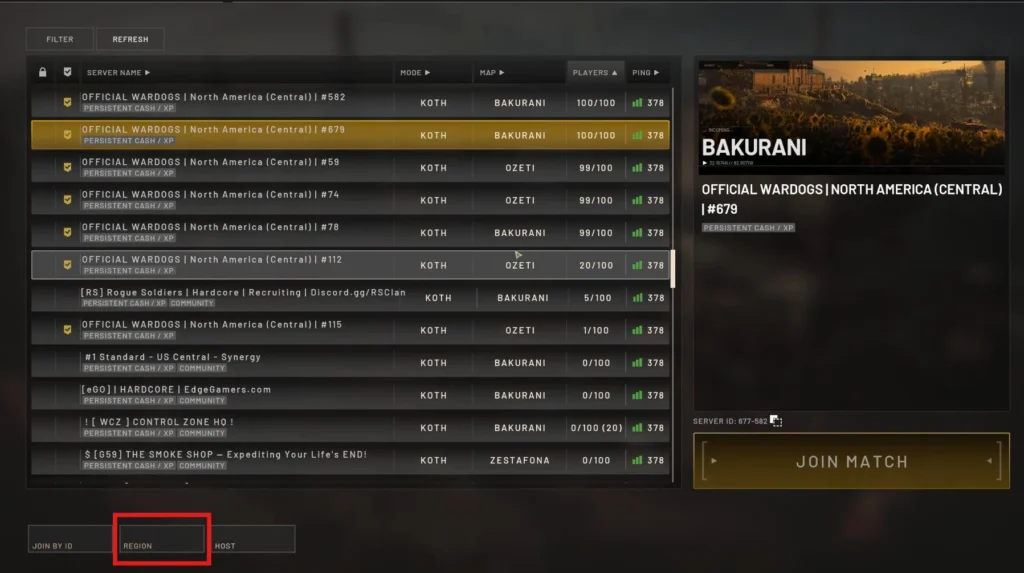
NOTE: Make sure the region for you and your friends is the same. You can change the region by selecting the “region” option at the bottom of the screen.
Try to communicate with your friends over an app like Discord or Steam messages to confirm which server and faction to choose. Once you and your friends are in the same faction and on the same server, one of them can create a squad.
- Press the “Esc” key.
- Select the “Create Squad” option above the various squads in the menu.
- Now, scroll down to “Unassigned Players” and click it to reveal all the players in the faction.
- Select the “+” symbol in front of your friends’ IGN to invite them to your squad.
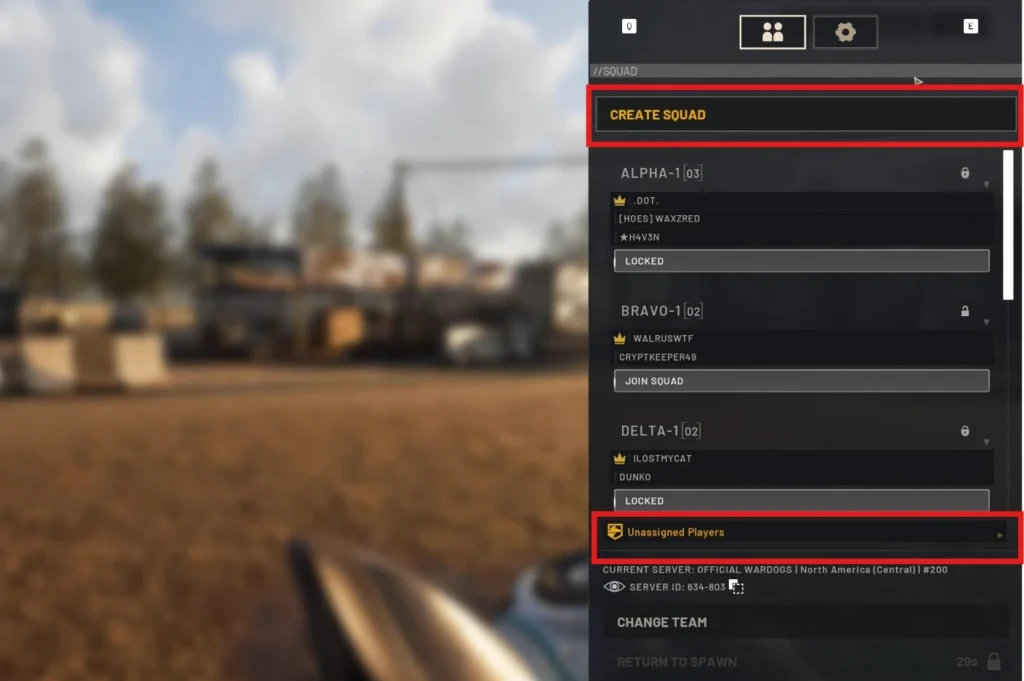
NOTE: Keep the Squad Private so that no other player can join randomly. Turn off the lock symbol option in front of your squad name in the menu to keep it private.
Once all of your friends are in the same squad, you can use voice comms in the squad without using proximity.







Castlevania Belmont’s Curse: How to Unlock Sonia Style Costume

Castlevania Belmont’s Curse: How to Solve the Secret Giant Organ Puzzle – War & Famine Weapon


